If you need to export a PDF into a single file for a presentation, document, or other purpose, you’ve come to the right place. This article provides an overview of a free plugin for exporting PDF files from Figma and a couple of other options for doing this without third-party plugins.
Multi-page PDF Exporter Plugin Review
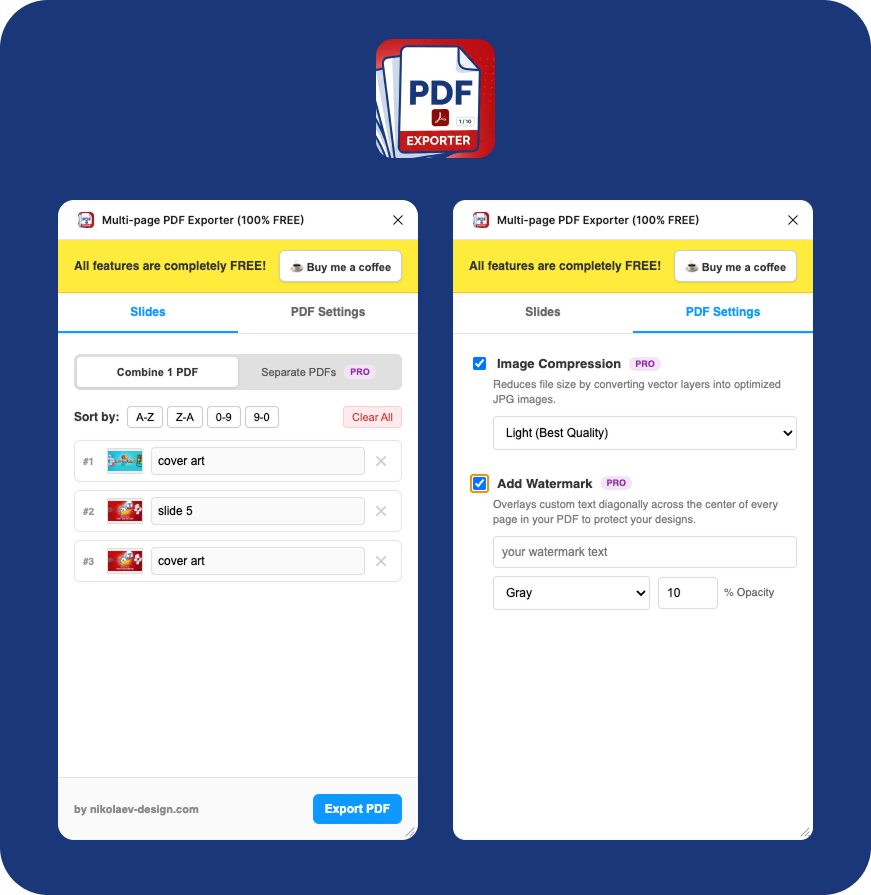
The plugin is an extension for the Figma program, which includes the following functions:
- Export selected artboards to 1 PDF file
- Export selected artboards to separate files
- Change the order of slides (or pages) by dragging and dropping slides
- Sorting slides (or pages) A-Z, Z-A, 0-9, 9-0
- Removing items from the list
- Clearing the list of items
- Adding additional slides (after selecting artboards, the plugin offers to add them to the list)
- Artboard renaming functionality directly in the plugin
- PDF compression to reduce file size (works on the principle of converting artboards to JPG images and further compression)
- Installing watermarks (copywriting) with custom text and color and transparency settings (to protect documents from theft)
This is very convenient for UI/UX designers, digital design professionals, and clients, eliminating the need to purchase paid plugins or spend time merging PDFs into a single file. Furthermore, you can compress and add watermarks right away.
Download the plugin for Figma
Go to the official Figma resource with the
Multi-page PDF Exporter plugin (100% Free) , click the Open in… button and select the file in which you want to activate the plugin.
How to use the plugin
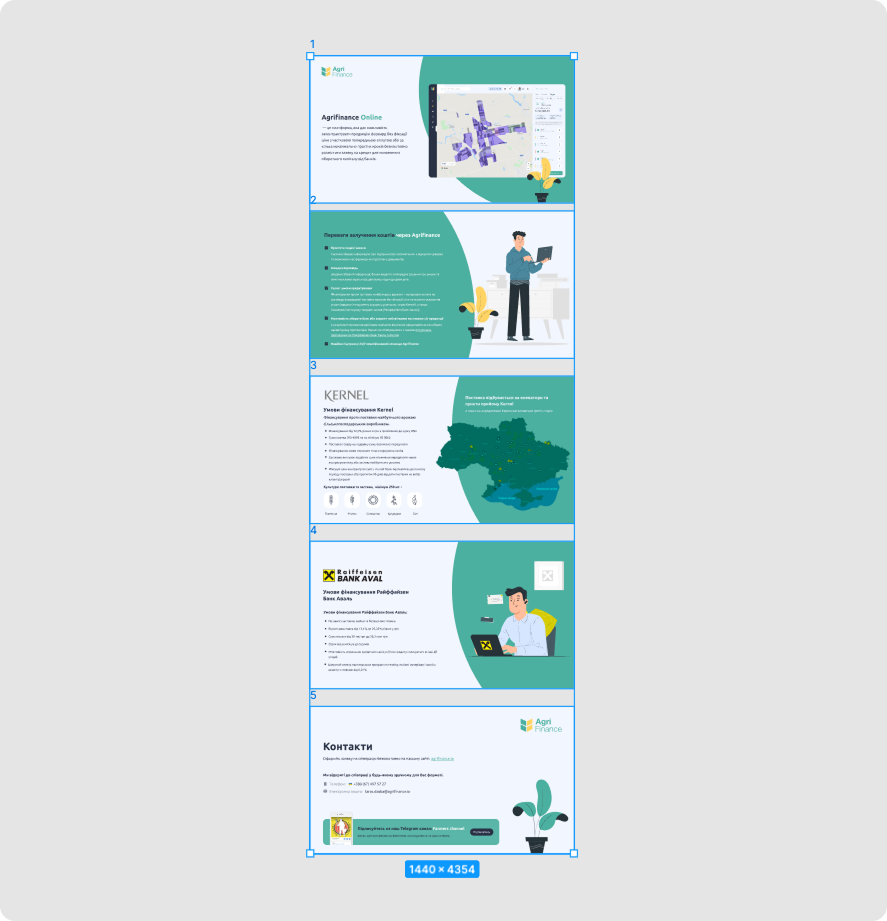
Select the fragments you want to export (it is important that these are artboards, not individual groups or layers):
Tip: Pay attention to the layer order. Often, a layer is outside the frame (artboard), which can cause slides to appear incorrect (for example, missing elements).
Open the plugin using the link or click on the bottom toolbar as shown in the screenshot:
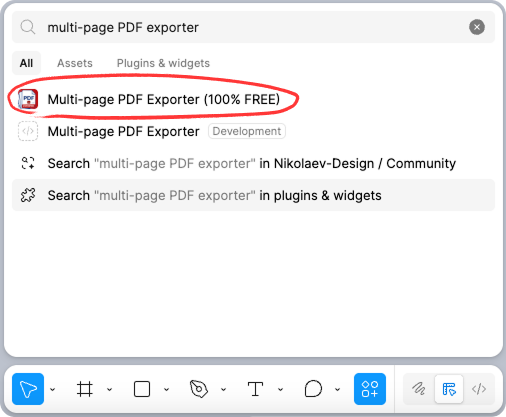
Change the order of items if necessary, sort and click the Export PDF button.
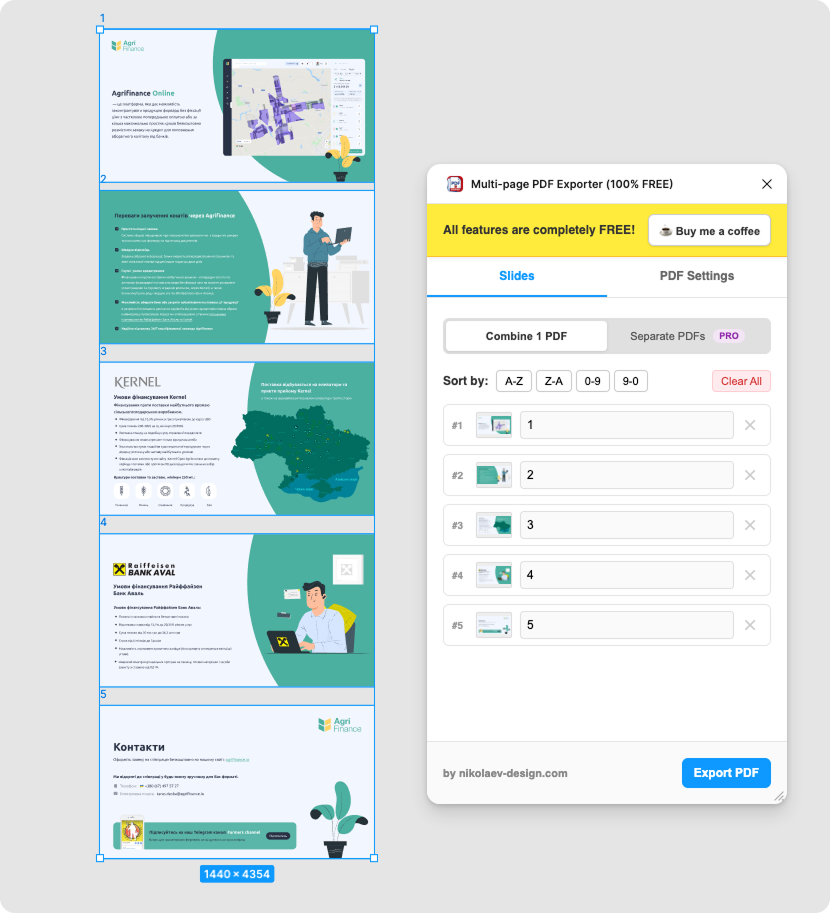
Done! Choose a save location on your computer and use your PDF. Use the plugin’s other features as needed. If you encounter any issues with the plugin or have any suggestions for improvement, please contact me using the contact information in the footer of this page. Also, check out my other plugins ; they have lots of interesting and useful stuff.